$ wget --debug --header="User-Agent: Mozilla/5.0 (Windows NT 10.0; Win64; x64) AppleWebKit/537.36 (KHTML, like Gecko) Chrome/91.0.4472.124 Safari/537.36 Edg/91.0.864.59" http://example.com
你还可以伪装成特定的移动设备:
1 2 3
$ wget --debug \ --header="User-Agent: Mozilla/5.0 (iPhone; CPU iPhone OS 13_5_1 like Mac OS X) AppleWebKit/605.1.15 (KHTML, like Gecko) Version/13.1.1 Mobile/15E148 Safari/604.1" \ http://example.com
查看响应头
与浏览器请求头的方式相同,头信息也包含在响应中。可以使用 –debug 查看响应头:
1 2 3 4 5 6 7 8 9 10 11 12 13 14 15 16 17 18 19
$ wget --debug example.com
[...]
---response begin---
HTTP/1.1 200 OK
Accept-Ranges: bytes
Age: 188102
Cache-Control: max-age=604800
Content-Type: text/html; charset=UTF-8
Etag: "3147526947"
Server: ECS (sab/574F)
Vary: Accept-Encoding
X-Cache: HIT
Content-Length: 1256
---response end---
200 OK
Registered socket 3 for persistent reuse.
URI content encoding = 'UTF-8'
Length: 1256 (1.2K) [text/html]
Saving to: 'index.html'
$wget --user-agent="Mozilla/5.0(Windows; U; Windows NT 6.1; en-US) AppleWebKit/534.16 (KHTML, like Gecko) Chrome/10.0.648.204 Safari/534.16" http://mirrors.sohu.com/centos/7.4.1708/isos/x86_64/CentOS-7-x86_64-Minimal01708.iso
Usage: curl [options...] <url>
     --abstract-unix-socket <path>   Connect via abstract Unix domain socket
     --alt-svc <filename>            Enable alt-svc with this cache file
     --anyauth                       Pick any authentication method
 -a, --append                        Append to target file when uploading
     --aws-sigv4 <provider1[:prvdr2[:reg[:srv]]]>  AWS V4 signature auth
     --basic                         HTTP Basic Authentication
     --ca-native                     Load CA certs from the OS
     --cacert <file>                 CA certificate to verify peer against
     --capath <dir>                  CA directory to verify peer against
 -E, --cert <certificate[:password]>  Client certificate file and password
     --cert-status                   Verify server cert status OCSP-staple
     --cert-type <type>              Certificate type (DER/PEM/ENG/P12)
     --ciphers <list of ciphers>     SSL ciphers to use
     --compressed                    Request compressed response
     --compressed-ssh                Enable SSH compression
 -K, --config <file>                 Read config from a file
     --connect-timeout <seconds>     Maximum time allowed to connect
     --connect-to <HOST1:PORT1:HOST2:PORT2>  Connect to host
 -C, --continue-at <offset>          Resumed transfer offset
 -b, --cookie <data|filename>        Send cookies from string/load from file
 -c, --cookie-jar <filename>         Save cookies to <filename> after operation
     --create-dirs                   Create necessary local directory hierarchy
     --create-file-mode <mode>       File mode for created files
     --crlf                          Convert LF to CRLF in upload
     --crlfile <file>                Certificate Revocation list
     --curves <list>                 (EC) TLS key exchange algorithms to request
 -d, --data <data>                   HTTP POST data
     --data-ascii <data>             HTTP POST ASCII data
     --data-binary <data>            HTTP POST binary data
     --data-raw <data>               HTTP POST data, '@' allowed
     --data-urlencode <data>         HTTP POST data URL encoded
     --delegation <LEVEL>            GSS-API delegation permission
     --digest                        HTTP Digest Authentication
 -q, --disable                       Disable .curlrc
     --disable-eprt                  Inhibit using EPRT or LPRT
     --disable-epsv                  Inhibit using EPSV
     --disallow-username-in-url      Disallow username in URL
     --dns-interface <interface>     Interface to use for DNS requests
     --dns-ipv4-addr <address>       IPv4 address to use for DNS requests
     --dns-ipv6-addr <address>       IPv6 address to use for DNS requests
     --dns-servers <addresses>       DNS server addrs to use
     --doh-cert-status               Verify DoH server cert status OCSP-staple
     --doh-insecure                  Allow insecure DoH server connections
     --doh-url <URL>                 Resolve hostnames over DoH
 -D, --dump-header <filename>        Write the received headers to <filename>
     --egd-file <file>               EGD socket path for random data
     --engine <name>                 Crypto engine to use
     --etag-compare <file>           Load ETag from file
     --etag-save <file>              Parse incoming ETag and save to a file
     --expect100-timeout <seconds>   How long to wait for 100-continue
 -f, --fail                          Fail fast with no output on HTTP errors
     --fail-early                    Fail on first transfer error
     --fail-with-body                Fail on HTTP errors but save the body
     --false-start                   Enable TLS False Start
 -F, --form <name=content>           Specify multipart MIME data
     --form-escape                   Escape form fields using backslash
     --form-string <name=string>     Specify multipart MIME data
     --ftp-account <data>            Account data string
     --ftp-alternative-to-user <command>  String to replace USER [name]
     --ftp-create-dirs               Create the remote dirs if not present
     --ftp-method <method>           Control CWD usage
     --ftp-pasv                      Send PASV/EPSV instead of PORT
 -P, --ftp-port <address>            Send PORT instead of PASV
     --ftp-pret                      Send PRET before PASV
     --ftp-skip-pasv-ip              Skip the IP address for PASV
     --ftp-ssl-ccc                   Send CCC after authenticating
     --ftp-ssl-ccc-mode <active/passive>  Set CCC mode
     --ftp-ssl-control               Require TLS for login, clear for transfer
 -G, --get                           Put the post data in the URL and use GET
 -g, --globoff                       Disable URL globbing with {} and []
     --happy-eyeballs-timeout-ms <ms>  Time for IPv6 before IPv4
     --haproxy-clientip <ip>         Set address in HAProxy PROXY
     --haproxy-protocol              Send HAProxy PROXY protocol v1 header
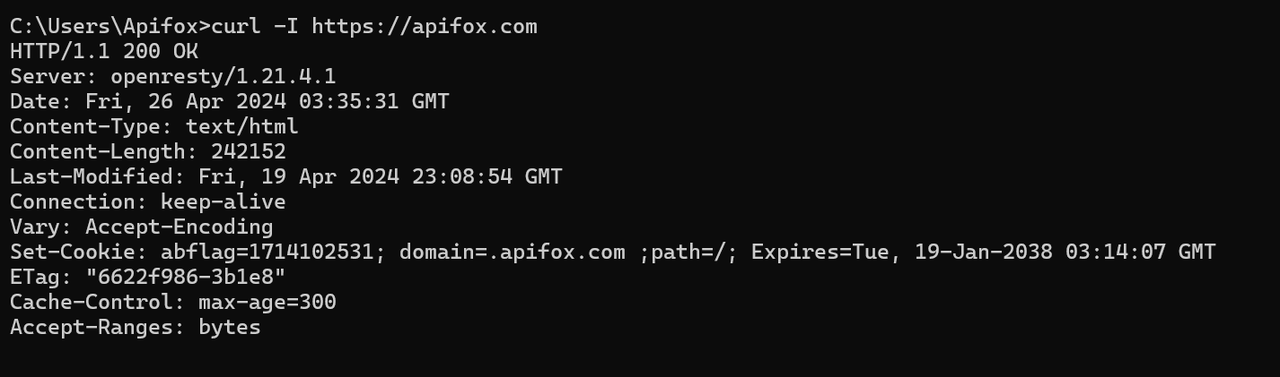
 -I, --head                          Show document info only
 -H, --header <header/@file>         Pass custom header(s) to server
 -h, --help <category>               Get help for commands
     --hostpubmd5 <md5>              Acceptable MD5 hash of host public key
     --hostpubsha256 <sha256>        Acceptable SHA256 hash of host public key
     --hsts <filename>               Enable HSTS with this cache file
     --http0.9                       Allow HTTP 0.9 responses
 -0, --http1.0                       Use HTTP 1.0
     --http1.1                       Use HTTP 1.1
     --http2                         Use HTTP/2
     --http2-prior-knowledge         Use HTTP 2 without HTTP/1.1 Upgrade
     --http3                         Use HTTP v3
     --http3-only                    Use HTTP v3 only
     --ignore-content-length         Ignore the size of the remote resource
 -i, --include                       Include response headers in output
 -k, --insecure                      Allow insecure server connections
     --interface <name>              Use network INTERFACE (or address)
     --ipfs-gateway <URL>            Gateway for IPFS
 -4, --ipv4                          Resolve names to IPv4 addresses
 -6, --ipv6                          Resolve names to IPv6 addresses
     --json <data>                   HTTP POST JSON
 -j, --junk-session-cookies          Ignore session cookies read from file
     --keepalive-time <seconds>      Interval time for keepalive probes
     --key <key>                     Private key filename
     --key-type <type>               Private key file type (DER/PEM/ENG)
     --krb <level>                   Enable Kerberos with security <level>
     --libcurl <file>                Generate libcurl code for this command line
     --limit-rate <speed>            Limit transfer speed to RATE
 -l, --list-only                     List only mode
     --local-port <range>            Use a local port number within RANGE
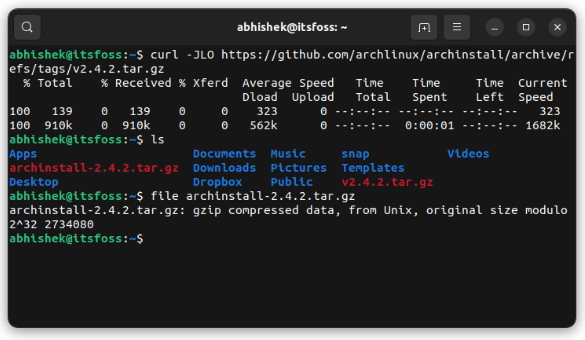
 -L, --location                      Follow redirects
     --location-trusted            Like --location, but send auth to other hosts
     --login-options <options>       Server login options
     --mail-auth <address>           Originator address of the original email
     --mail-from <address>           Mail from this address
     --mail-rcpt <address>           Mail to this address
     --mail-rcpt-allowfails          Allow RCPT TO command to fail
 -M, --manual                        Display the full manual
     --max-filesize <bytes>          Maximum file size to download
     --max-redirs <num>              Maximum number of redirects allowed
 -m, --max-time <seconds>            Maximum time allowed for transfer
     --metalink                      Process given URLs as metalink XML file
     --negotiate                     Use HTTP Negotiate (SPNEGO) authentication
 -n, --netrc                         Must read .netrc for username and password
     --netrc-file <filename>         Specify FILE for netrc
     --netrc-optional                Use either .netrc or URL
 -:, --next                        Make next URL use its separate set of options
     --no-alpn                       Disable the ALPN TLS extension
 -N, --no-buffer                     Disable buffering of the output stream
     --no-clobber                    Do not overwrite files that already exist
     --no-keepalive                  Disable TCP keepalive on the connection
     --no-npn                        Disable the NPN TLS extension
     --no-progress-meter             Do not show the progress meter
     --no-sessionid                  Disable SSL session-ID reusing
     --noproxy <no-proxy-list>       List of hosts which do not use proxy
     --ntlm                          HTTP NTLM authentication
     --ntlm-wb                       HTTP NTLM authentication with winbind
     --oauth2-bearer <token>         OAuth 2 Bearer Token
 -o, --output <file>                 Write to file instead of stdout
     --output-dir <dir>              Directory to save files in
 -Z, --parallel                      Perform transfers in parallel
     --parallel-immediate         Do not wait for multiplexing (with --parallel)
     --parallel-max <num>            Maximum concurrency for parallel transfers
     --pass <phrase>                 Pass phrase for the private key
     --path-as-is                    Do not squash .. sequences in URL path
     --pinnedpubkey <hashes>       FILE/HASHES Public key to verify peer against
     --post301                       Do not switch to GET after a 301 redirect
     --post302                       Do not switch to GET after a 302 redirect
     --post303                       Do not switch to GET after a 303 redirect
     --preproxy [protocol://]host[:port]  Use this proxy first
 -#, --progress-bar                  Display transfer progress as a bar
     --proto <protocols>             Enable/disable PROTOCOLS
     --proto-default <protocol>      Use PROTOCOL for any URL missing a scheme
     --proto-redir <protocols>       Enable/disable PROTOCOLS on redirect
 -x, --proxy [protocol://]host[:port]  Use this proxy
     --proxy-anyauth                 Pick any proxy authentication method
     --proxy-basic                   Use Basic authentication on the proxy
     --proxy-ca-native               Load CA certs from the OS to verify proxy
     --proxy-cacert <file>           CA certificates to verify proxy against
     --proxy-capath <dir>            CA directory to verify proxy against
     --proxy-cert <cert[:passwd]>    Set client certificate for proxy
     --proxy-cert-type <type>        Client certificate type for HTTPS proxy
     --proxy-ciphers <list>          SSL ciphers to use for proxy
     --proxy-crlfile <file>          Set a CRL list for proxy
     --proxy-digest                  Digest auth with the proxy
     --proxy-header <header/@file>   Pass custom header(s) to proxy
     --proxy-http2                   Use HTTP/2 with HTTPS proxy
     --proxy-insecure                Skip HTTPS proxy cert verification
     --proxy-key <key>               Private key for HTTPS proxy
     --proxy-key-type <type>         Private key file type for proxy
     --proxy-negotiate               HTTP Negotiate (SPNEGO) auth with the proxy
     --proxy-ntlm                    NTLM authentication with the proxy
     --proxy-pass <phrase>       Pass phrase for the private key for HTTPS proxy
     --proxy-pinnedpubkey <hashes>   FILE/HASHES public key to verify proxy with
     --proxy-service-name <name>     SPNEGO proxy service name
     --proxy-ssl-allow-beast     Allow security flaw for interop for HTTPS proxy
     --proxy-ssl-auto-client-cert    Auto client certificate for proxy
     --proxy-tls13-ciphers <ciphersuite list>  TLS 1.3 proxy cipher suites
     --proxy-tlsauthtype <type>      TLS authentication type for HTTPS proxy
     --proxy-tlspassword <string>    TLS password for HTTPS proxy
     --proxy-tlsuser <name>          TLS username for HTTPS proxy
     --proxy-tlsv1                   TLSv1 for HTTPS proxy
 -U, --proxy-user <user:password>    Proxy user and password
     --proxy1.0 <host[:port]>        Use HTTP/1.0 proxy on given port
 -p, --proxytunnel                   HTTP proxy tunnel (using CONNECT)
     --pubkey <key>                  SSH Public key filename
 -Q, --quote <command>               Send command(s) to server before transfer
     --random-file <file>            File for reading random data from
 -r, --range <range>                 Retrieve only the bytes within RANGE
     --rate <max request rate>       Request rate for serial transfers
     --raw                           Do HTTP raw; no transfer decoding
 -e, --referer <URL>                 Referrer URL
 -J, --remote-header-name            Use the header-provided filename
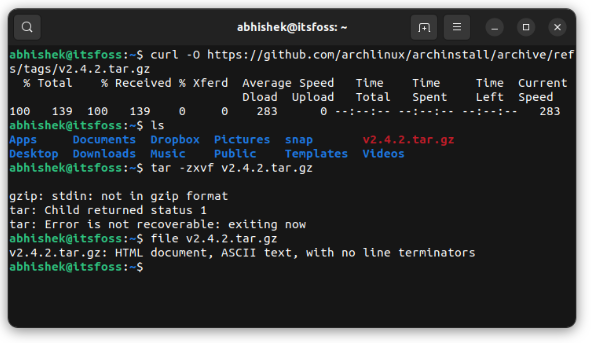
 -O, --remote-name                   Write output to file named as remote file
     --remote-name-all               Use the remote filename for all URLs
 -R, --remote-time                   Set remote file's time on local output
     --remove-on-error               Remove output file on errors
 -X, --request <method>              Specify request method to use
     --request-target <path>         Specify the target for this request
     --resolve <[+]host:port:addr[,addr]...>  Resolve host+port to address
     --retry <num>                   Retry request if transient problems occur
     --retry-all-errors              Retry all errors (with --retry)
     --retry-connrefused             Retry on connection refused (with --retry)
     --retry-delay <seconds>         Wait time between retries
     --retry-max-time <seconds>      Retry only within this period
     --sasl-authzid <identity>       Identity for SASL PLAIN authentication
     --sasl-ir                       Initial response in SASL authentication
     --service-name <name>           SPNEGO service name
 -S, --show-error                    Show error even when -s is used
 -s, --silent                        Silent mode
     --socks4 <host[:port]>          SOCKS4 proxy on given host + port
     --socks4a <host[:port]>         SOCKS4a proxy on given host + port
     --socks5 <host[:port]>          SOCKS5 proxy on given host + port
     --socks5-basic                  Username/password auth for SOCKS5 proxies
     --socks5-gssapi                 Enable GSS-API auth for SOCKS5 proxies
     --socks5-gssapi-nec             Compatibility with NEC SOCKS5 server
     --socks5-gssapi-service <name>  SOCKS5 proxy service name for GSS-API
     --socks5-hostname <host[:port]>  SOCKS5 proxy, pass hostname to proxy
 -Y, --speed-limit <speed>           Stop transfers slower than this
 -y, --speed-time <seconds>          Trigger 'speed-limit' abort after this time
     --ssl                           Try enabling TLS
     --ssl-allow-beast               Allow security flaw to improve interop
     --ssl-auto-client-cert          Use auto client certificate (Schannel)
     --ssl-no-revoke                 Disable cert revocation checks (Schannel)
     --ssl-reqd                      Require SSL/TLS
     --ssl-revoke-best-effort        Ignore missing cert CRL dist points
 -2, --sslv2                         SSLv2
 -3, --sslv3                         SSLv3
     --stderr <file>                 Where to redirect stderr
     --styled-output                 Enable styled output for HTTP headers
     --suppress-connect-headers      Suppress proxy CONNECT response headers
     --tcp-fastopen                  Use TCP Fast Open
     --tcp-nodelay                   Set TCP_NODELAY
 -t, --telnet-option <opt=val>       Set telnet option
     --tftp-blksize <value>          Set TFTP BLKSIZE option
     --tftp-no-options               Do not send any TFTP options
 -z, --time-cond <time>              Transfer based on a time condition
     --tls-max <VERSION>             Maximum allowed TLS version
     --tls13-ciphers <list>          TLS 1.3 cipher suites to use
     --tlsauthtype <type>            TLS authentication type
     --tlspassword <string>          TLS password
     --tlsuser <name>                TLS username
 -1, --tlsv1                         TLSv1.0 or greater
     --tlsv1.0                       TLSv1.0 or greater
     --tlsv1.1                       TLSv1.1 or greater
     --tlsv1.2                       TLSv1.2 or greater
     --tlsv1.3                       TLSv1.3 or greater
     --tr-encoding                   Request compressed transfer encoding
     --trace <file>                  Write a debug trace to FILE
     --trace-ascii <file>            Like --trace, but without hex output
     --trace-config <string>         Details to log in trace/verbose output
     --trace-ids                     Transfer + connection ids in verbose output
     --trace-time                    Add time stamps to trace/verbose output
     --unix-socket <path>            Connect through this Unix domain socket
 -T, --upload-file <file>            Transfer local FILE to destination
     --url <url>                     URL to work with
     --url-query <data>              Add a URL query part
 -B, --use-ascii                     Use ASCII/text transfer
 -u, --user <user:password>          Server user and password
 -A, --user-agent <name>             Send User-Agent <name> to server
     --variable <[%]name=text/@file>  Set variable
 -v, --verbose                       Make the operation more talkative
 -V, --version                       Show version number and quit
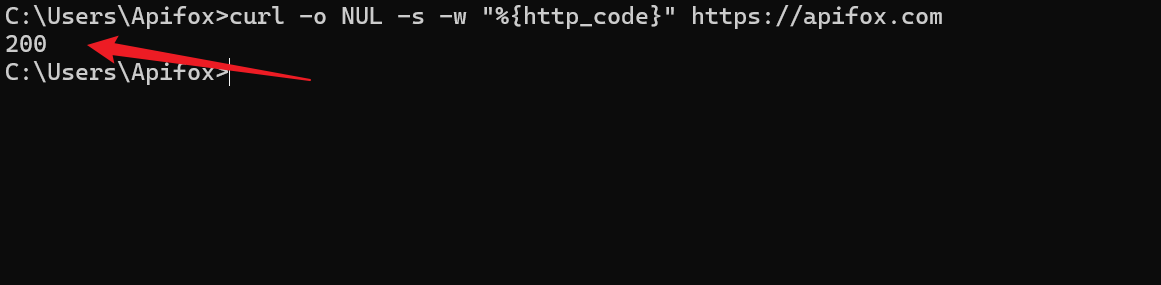
 -w, --write-out <format>            Output FORMAT after completion
     --xattr                         Store metadata in extended file attributes